
How to Convert DVD to MKV?
Top DVD to MKV Converters Recommendation

Introduction
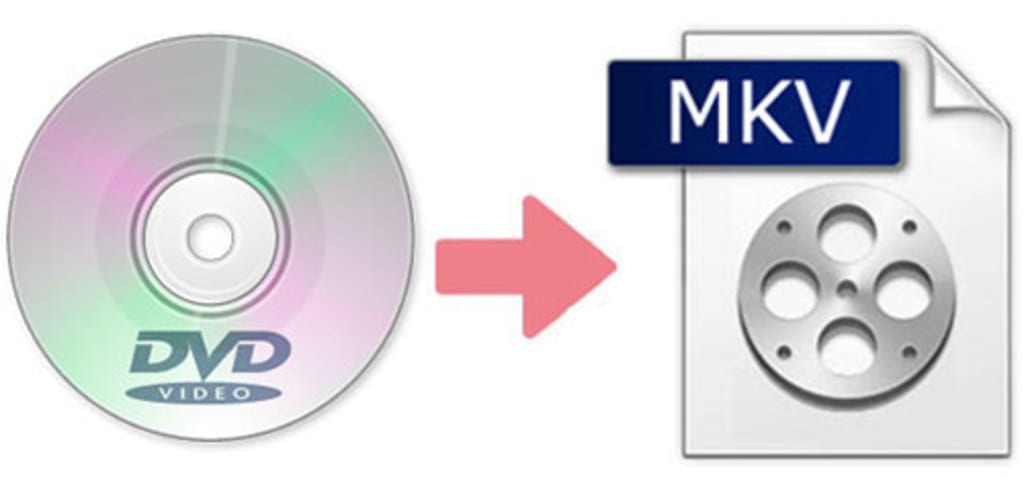
As DVDs continue to be a popular form of media, many people are looking for ways to convert their DVD collections into digital formats that can be easily stored and accessed on their devices. One popular format for converting DVDs is MKV (Matroska Video), which is a versatile format that can preserve high-quality video and audio while keeping the file size manageable. In this article, we will explore the best 5 DVD to MKV converters and their functions and provide step-by-step instructions on how to use them.
Best 5 DVD to MKV Converters
Handbrake
HandBrake is usually one of the first tools I think of when people ask for a free DVD to MKV converter. It is open-source, works on both Windows and Mac, and has built a strong reputation over time because it balances usability with control. I think one reason it remains so popular is that it does not feel too overwhelming at first, but it still gives users enough settings to fine-tune the output.
When using HandBrake to convert DVD to MKV, users can choose the title they want to rip, select MKV as the output format, and adjust settings such as resolution, frame rate, bitrate, subtitles, and audio tracks. I find it especially useful for people who want a flexible tool without having to pay for a license. Once the settings are ready, the process is simple: choose the source, select the destination, and click "Start Encode" to begin.
DVDFab DVD Ripper
DVDFab DVD Ripper is a popular paid DVD ripping software that can convert DVD to MKV efficiently. It is available for both Windows and Mac, and offers a simple interface with many customization options. With DVDFab DVD Ripper, you can choose the title you want to rip, select the output format (it supports hundreds of output formats including MKV), and adjust the resolution, frame rate, and other video settings.
What I like about DVDFab DVD Ripper is that it makes the process straightforward without removing too much control. It also allows users to focus only on the main movie or select specific chapters and audio tracks. For people who want more convenience and a cleaner workflow, this DVD to MKV converter can feel like a more user-friendly option.
MakeMKV
MakeMKV is one of the most recognizable names in this category, and I can understand why. As the name suggests, it is designed specifically to convert DVD to MKV, so it keeps the process simple and direct. Instead of offering too many output choices, it focuses on doing one thing well, which is creating MKV files from disc content with as much original quality as possible.
That focused approach is what makes MakeMKV appealing to many users. I think it is especially attractive for people who do not want to spend time adjusting too many settings before starting the conversion. It is available for Windows and Mac, and it is widely known for preserving video and audio quality well. If someone mainly wants a straightforward DVD to MKV converter and does not need a lot of format flexibility, MakeMKV is often one of the easiest tools to consider.
VLC Media Player
Most people think of VLC Media Player as a video player first, but I think its extra tools are one reason it remains useful year after year. It is a free, open-source multimedia application available for Windows, Mac, and Linux, and it can also handle basic DVD to MKV conversion tasks. For users who do not want to install a dedicated ripper immediately, VLC can be a practical starting point.
What makes VLC interesting is that it combines DVD playback, transcoding, and output settings in one program. In my view, that makes it a reasonable option for light DVD to MKV conversion, especially for users who already have VLC installed and only need a simple solution. That said, I would not treat it as the most specialized DVD to MKV converter on this list. It is more of a convenient all-around media tool than a purpose-built ripping program, so it tends to be better for basic use than for more demanding backup projects.
FFmpeg
FFmpeg is a very different kind of tool from the others listed here. It works on Windows, Mac, and Linux, and it is especially useful for advanced users who want a more flexible way to convert DVD to MKV. Because it uses command-line instructions instead of a standard graphical interface, it offers a much higher level of control, but it also asks more from the user.
I think FFmpeg is best suited to people who already feel comfortable working with technical settings. It can handle DVD sources in different forms, including DVD folders and ISO content, while giving users detailed control over video, audio, subtitles, and stream selection in MKV output. That level of precision is a major advantage for users who want more control over the final file. At the same time, its workflow is less beginner-friendly than other DVD to MKV converter software, so it makes more sense for experienced users than for someone who just wants the easiest possible method.
How to Convert DVD to MKV?
Let's take DVDFab DVD Ripper as an example:
Step 1: Download and install DVDFab DVD Ripper
Head to the DVDFab website and download the software for your operating system. Follow the installation instructions to install DVDFab DVD Ripper on your computer.
Step 2: Insert the DVD
Insert the DVD you want to convert into your computer's DVD drive.
Step 3: Choose the Source and Destination
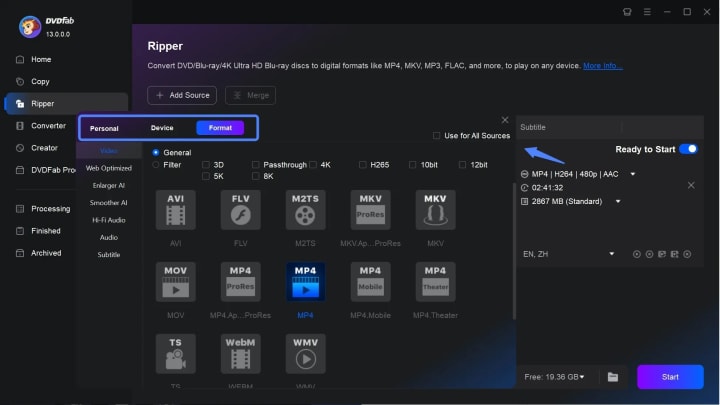
Open DVDFab DVD Ripper and select the DVD as the source. Choose the title you want to rip, and then choose a destination folder for the MKV file.
Step 4: Select the Output Format
Under the "Profile Switcher" section, choose "MKV" as the output format. You can also select the resolution, frame rate, and other video settings.
Step 5: Start the Conversion Process
Once you have chosen the settings, click the "Start" button to begin the conversion process. The time it takes to complete the conversion will depend on the length of the DVD and the settings you have chosen.
Step 6: Verify the Output
Once the conversion is complete, navigate to the destination folder and verify that the MKV file has been created. Play the file to ensure that the video and audio quality is satisfactory.
Conclusion
Converting DVDs to MKV format can be a great way to store your DVD collection digitally, making them easier to access and watch on different devices. With the software options listed above, it's now easier than ever to convert your DVDs to MKV format. Each software has its own unique features and functions, allowing you to choose the one that best fits your needs.
Whichever software you choose, make sure to follow the proper steps to ensure a successful conversion. With the right software and a little patience, you can easily convert your DVD collection to MKV format and enjoy your favorite movies and TV shows on any device.
About the Creator
Wenny
Hi there, I'm Wenny, a technical writer sharing multimedia solutions accessible for everyone. Read my articles to turn "how?" into "let's do it!"
The Rise of AI Presentation Tools: Transforming the Way We Create Slides
Artificial intelligence is quietly reshaping how we work, learn, and communicate. One area where this shift is especially noticeable is presentation design. Creating slides used to mean hours of formatting, arranging content, and adjusting visuals. Today, AI-powered tools are simplifying that process, helping users turn ideas into polished presentations in a fraction of the time.
By charliesamuel5 days ago in 01
Understanding Behavioral Health: Why It Matters More Than Ever
Behavioral health is no longer a secondary conversation in healthcare — it is central to how we understand overall well-being. As awareness grows and stigma declines, more individuals, families, employers, and policymakers are recognizing that mental health, emotional wellness, and substance use treatment are essential components of a healthy society.
By Herrick Lipton6 days ago in 01
Writing To Succeed
If you want to find something that will help readers find your writing, possibly expand your audience, and maybe even get you noticed for other things, then you’re not alone. But how can you get it done in a world full of want-to-be writers? Look less at what you’re writing now, and more at what other writers have used to boost their views and reads.
By Jason Ray Morton 2 days ago in Writers


Comments
There are no comments for this story
Be the first to respond and start the conversation.