
How to Copy Text from a Picture (6 Practical Ways)
Extract text form a picture on iPhone, Android, Windows, Mac, and online using 6 practical step-by-step methods.

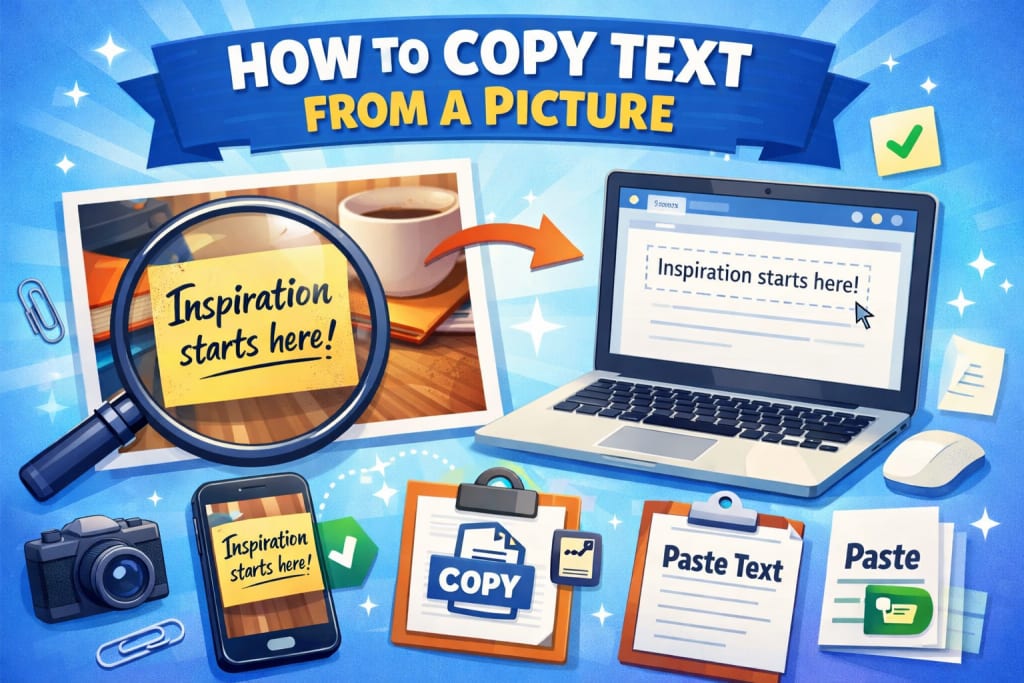
Do you have a photo of a receipt, a screenshot of an error message, or a scanned document with important text in it?
You need that text in an editable format. Right?
There is no way to click and select the text from the image directly. You either retype the whole thing manually or find a smarter way.
The good news is you don't need to type it out manually. There are multiple methods that you can use to perform the conversion in seconds.
In this guide, you'll learn exactly how to copy text from a picture on every major device and platform. Each method includes clear, simple steps so you can follow along without any technical background.
Why Can You Not Just Copy Text from an Image?
Most people wonder why they cannot simply click on text inside a photo and copy it like they would on a webpage. The answer comes down to how images work.
A photo is made of pixels (millions of tiny colored dots). Your phone or computer sees those dots as a pattern, not as readable letters. The word "Hello" inside a photo is just a group of colored pixels arranged in a certain shape. The device does not know it says "Hello."
OCR (Optical Character Recognition) is the technology that solves this. It scans the pixel patterns in an image, recognizes letter shapes, and converts them into real, editable text. Modern OCR tools use AI to do this with very high accuracy — sometimes 99% for printed text.
Every tool in this guide uses OCR in some form, whether it is built into your phone, your browser, or a website.
Now let's look at the 6 best methods.
Method 1: Google Lens (Android, iPhone and Desktop)
Google Lens is one of the most capable free tools for pulling text out of images. It runs on Google's AI, which means it handles tricky handwriting, awkward angles, and unusual fonts better than most basic OCR tools.
It works on Android, iPhone, and desktop computers through the Chrome browser.
On Android:
Most Android phones come with Google Lens pre-installed inside the Google Photos app or the Google app itself.
- Open the Google Photos app on your phone.
- Tap the image that contains the text you want.
- Tap the Lens icon at the bottom of the screen.
- Tap the "Text" tab that appears in the toolbar.
- Tap "Select all" to highlight everything, or drag your finger to choose specific words.
- Tap "Copy text" to copy it to your clipboard.
- Open any app and paste with a long press.
On iPhone:
Google Lens is available on iOS through the free Google app from the App Store.
- Download and open the Google app on your iPhone.
- Tap the Lens icon inside the search bar at the top.
- Select an existing image from your photo library or point the camera at text.
- Tap the "Text" tab at the bottom of the screen.
- Tap "Select all" or manually highlight the text you want.
- Tap "Copy" to save the text to your clipboard.
On Desktop (Windows or Mac, Chrome browser):
You do not need to install anything extra if you already use Chrome on your computer.
- Right-click any image that contains text directly on a webpage in Chrome.
- Select "Search image with Google Lens" from the menu.
- A sidebar opens on the right with the Lens results.
- Click the "Text" tab inside the sidebar.
- Click "Select all text" or highlight specific portions.
- Right-click the selected text and choose "Copy".
If the image is saved locally on your computer, go to photos.google.com, upload or open the image, and click the Lens icon to access the same text extraction feature.
Method 2: Apple Live Text (iPhone, iPad and Mac)
Apple built one of the best text extraction tools right into every iPhone, iPad, and Mac. It is called Live Text, and it works directly inside the Photos app and the Camera. No uploads, no third-party apps, no account needed.
Live Text requires an iPhone XR or newer running iOS 15 or later. On Mac, it needs macOS Monterey (version 12) or later.
On iPhone or iPad:
- Open the Photos app and tap the image with text in it.
- Look for the Live Text icon in the bottom-right corner. It looks like a small box with horizontal lines inside. Tap it.
- The text in the image will highlight and become selectable.
- Tap "Select All" to grab everything, or drag the handles to select specific words.
- Tap "Copy" from the menu that appears.
- Paste the text anywhere you need it.
Live Text also works in the Camera app in real time. Just point your camera at any printed text, and a Live Text icon appears automatically. Tap it to copy the text without even taking a photo first.
On Mac:
- Open the image in Preview or the Photos app.
- Hover your mouse cursor over the text inside the image.
- Your cursor will change to the standard text cursor (the blinking I-beam shape).
- Click and drag to select the text you want.
- Press Cmd + C to copy, or right-click and choose "Copy".
Everything happens on your device. Nothing gets uploaded anywhere.
Live Text supports English, French, German, Italian, Spanish, Portuguese, Japanese, Korean, Chinese, Ukrainian, and several more languages.
Method 3: Microsoft PowerToys Text Extractor (Windows)
Microsoft PowerToys is a free official tool from Microsoft that adds extra features to Windows. One of those features is Text Extractor, which grabs text from anything visible on your screen — image files, screenshots, locked PDFs, video frames, or any open window.
Setup (one time only):
- Download Microsoft PowerToys for free from the Microsoft Store or the official GitHub page (search "Microsoft PowerToys release").
- Open the PowerToys app after installation.
- Click "Text Extractor" in the left sidebar.
- Toggle it to On.
- Note the keyboard shortcut, which defaults to Windows + Shift + T.
Using Text Extractor:
- Open the image on your computer or display any screen with text you want to copy.
- Press Windows + Shift + T on your keyboard.
- Your screen will dim, and a crosshair cursor will appear.
- Click and drag to draw a selection box around the text you want.
- Release the mouse. The text is instantly copied to your clipboard.
- Press Ctrl + V to paste it anywhere.
The whole process takes about five seconds once the setup is done. Because it works on anything visible on your screen, it also handles screenshots, error messages, and content inside any app window.
All processing happens locally on your computer. Your images and screen content never leave your device.
Method 4: Free Online OCR Tools (Any Device, No App Needed)
If your device does not have built-in tools or you just need a quick one-time conversion, you can use web-based free online OCR tools. You upload an image, the tool converts it to text, and you copy what you need.
Several reliable tools handle this well in 2026:
OnlineOCR.net supports JPG, PNG, BMP, GIF, TIFF, and PDF formats. It lets you choose your language and download the output as plain text, Word, or Excel.
ImagetoTextOCR.com is fast and straightforward with a clean interface. It handles most common image formats and returns accurate results quickly for everyday images and screenshots.
Picturetotext.info handles complex image layouts well and supports multi-language text. It also accepts a direct image URL, so you do not always need to upload a file.
ImgOCR.com works well for multi-language content and supports a wide range of image formats. It is a solid backup when other tools struggle with a specific image.
- How to use any of these tools:
- Open one of the tools above in your browser on any device.
- Click the ‘Browse’ button and select your image, or drag and drop the file onto the page.
- Click the ‘Convert’ or extract button.
- The extracted text appears on the page in a text box.
- Select all the text and copy it, or click a download button if available.
Note: Use clear, well-lit images for the best results. Blurry or low-resolution photos will give less accurate output.
When you use online tools, your image is sent to a third-party server for processing. Avoid uploading images that contain passwords, financial details, or any sensitive private information.
Method 5: Microsoft OneNote (Windows and Mac)
OneNote has a built-in OCR feature that most Microsoft 365 users never discover. It is one of the most convenient options if you already work inside the Microsoft ecosystem, because the extracted text lands directly inside your notes.
- Open Microsoft OneNote and go to any notebook page.
- Click Insert in the top menu, then select Pictures to add your image to the page.
- Once the image appears on the page, right-click it.
- Select "Copy Text from Picture" from the right-click menu.
- Click anywhere in the notebook page and press Ctrl + V to paste the extracted text.
OneNote handles multi-paragraph text well and works particularly well for scanned documents, receipts, and business cards. If you already use Microsoft 365 daily, this is one of the quickest options available.
Method 6: AI Tools Like ChatGPT, Gemini and Claude (Any Device)
Tools like ChatGPT, Google Gemini, and Claude all support image uploads on their free plans. They shine on hard cases: handwritten notes, faded or low-contrast text, images with text at an angle, or mixed fonts.
- Open one of these tools in your browser: chatgpt.com, gemini.google.com, or claude.ai.
- Start a new conversation.
- Click the image or attachment icon in the chat input area.
- Upload your picture.
- Type a simple message like: "Extract all the text from this image."
- The AI returns the text in a few seconds.
- Copy the text from the response and paste it where you need it.
You can also ask the AI to clean up the formatting, fix spacing, or organize the text into a table. No traditional OCR tool can do that.
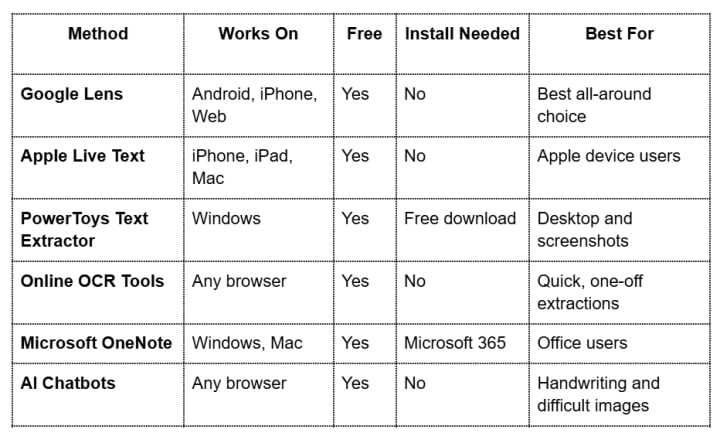
Quick Comparison: Which Method Works Best for You?
Tips to Get Better Results from Any OCR Tool
Even the best tools give poor results when the image quality is bad. A few simple habits make a real difference.
Use a high-resolution image: Low-resolution or heavily compressed images lose fine detail that OCR relies on. Aim for at least 300 DPI for scanned documents.
Keep the text straight: Rotated or tilted text causes errors in most tools. Straighten your image before uploading if possible.
Good lighting matters a lot: Shadows, glare, and uneven lighting reduce accuracy significantly. Natural light or bright, even indoor light, gives the cleanest results.
Plain backgrounds help: Text sitting on a patterned, colorful, or textured background is harder for OCR to separate and read correctly.
Always proofread the output: Printed text typically comes out at 98 to 99 percent accuracy. Handwriting drops to around 85 to 90 percent, depending on clarity. A quick review catches any errors before they cause problems downstream.
If one tool gives messy results on a specific image, try a different one. Each OCR engine has its own strengths, and switching tools often fixes the problem.
Frequently Asked Questions
Can you copy text directly from an image without any tool?
No. Images store text as pixels, not as actual characters. A regular copy-and-paste will not work on image content. You need an OCR tool to convert those pixel patterns into real, selectable text first.
What is the fastest way to copy text from a picture?
On iPhone, Apple Live Text takes two taps. On Android, Google Lens is just as fast. On Windows, PowerToys Text Extractor works with a single keyboard shortcut once it is set up. These three are the quickest options available in 2026.
How do I copy text from a picture on my iPhone?
Open the image in the Photos app, tap the Live Text icon in the bottom-right corner, select the text you want, and tap Copy. This works on iPhone XR and newer with iOS 15 or later installed.
How do I copy text from an image on Windows 10 or Windows 11?
Download Microsoft PowerToys from Microsoft for free, open the app, enable the Text Extractor feature, and press Windows + Shift + T. Draw a box around the text on your screen and it copies to your clipboard instantly. It works on any visible content, not just saved image files.
What free online tool extracts text from images accurately?
OnlineOCR.net, ImagetoTextOCR.com, PicturetoText.info, and ImgOCR.com all work well and are free to use in any browser without creating an account.
Can OCR tools read handwriting?
Yes, but accuracy is lower than with printed text. AI tools like Google Lens and ChatGPT handle handwriting better than traditional OCR tools. Clear, neat handwriting on a clean background gives the best results, typically in the 85 to 90 percent range.
Why does my extracted text have errors or missing words?
The most common causes are blurry images, low resolution, poor lighting, tilted text, or a busy background behind the text. Use a clear, well-lit, straight photo with a simple background for the most accurate extraction.
Is it safe to use online OCR tools?
For general, non-sensitive content, yes. These tools are widely used. However, avoid uploading images that contain passwords, bank details, ID numbers, or private documents. For sensitive content, use PowerToys on Windows or Live Text on Apple devices, since both process everything locally without sending anything to external servers.
Can these methods copy text from a screenshot?
Yes, all of them work on screenshots. PowerToys Text Extractor is especially useful here because it captures text directly from your screen in real time, without needing to save the screenshot as a file first.
Does Google Lens work on a computer?
Yes. In Chrome, right-click any image and select "Search image with Google Lens." Click the Text tab in the sidebar that opens. You can also access Lens features through Google Photos on the web at photos.google.com.
Final Thoughts
Copying text from a picture no longer takes technical skills or paid software. In 2026, every major device either comes with a built-in tool or offers a free browser option that does the job in seconds.
On iPhone or Mac, use Apple Live Text. On Android, Google Lens is already on your phone. On Windows, Microsoft PowerToys gives you a keyboard shortcut that works on anything on your screen. For a quick, browser-based solution on any device, any of the free online OCR tools listed above will work.
For images that are hard to read, handwritten, or low quality, try an AI tool like ChatGPT or Gemini. They handle difficult cases better than traditional OCR and can also format the text for you.
Pick the method that matches your device and try it now.
About the Creator
Jan Smith
With over 7 years of experience in the field, Jan Smith is a seasoned content writer known for his ability to craft compelling and engaging content across a variety of industries.
Can Training Farmers End Hunger?
What if one of the most powerful solutions to global hunger is not food aid, but knowledge? Around the world, millions of smallholder farmers grow the food that feeds their communities. Yet many of them struggle with low crop yields, unpredictable weather, poor soil quality, and limited market access. If farmers are at the center of food production, could empowering them with better skills be the key to ending hunger?
By Convoy of Hope6 days ago in Education
How to Install Floodlight Cameras: Step-by-Step Guide
Floodlight cameras give strong security for homes and businesses. They mix bright lights with video recording to scare away intruders and catch clear footage. When you pick the best floodlight camera, you get reliable protection that works day and night. This guide takes you through the installation process in clear steps.
By Bilal Ahmad8 days ago in Education
Parallel Protests
I haven't written for quite some time, but I have A LOT of thoughts about yesterday's protest rally against our government's involvement and complicity in America's war on Iran, on the harbourside of my home city Bristol, and I need to put them somewhere. My gorgeous girlfriend is always a loving and listening ear and sharing it all with her will always be a healthy and happy way of processing the mental and emotional weight, but getting it straight in my brain to share means writing it all down in straight lines, so, here we are and thanks for being here.
By Steph Cole6 days ago in The Swamp



Comments
There are no comments for this story
Be the first to respond and start the conversation.